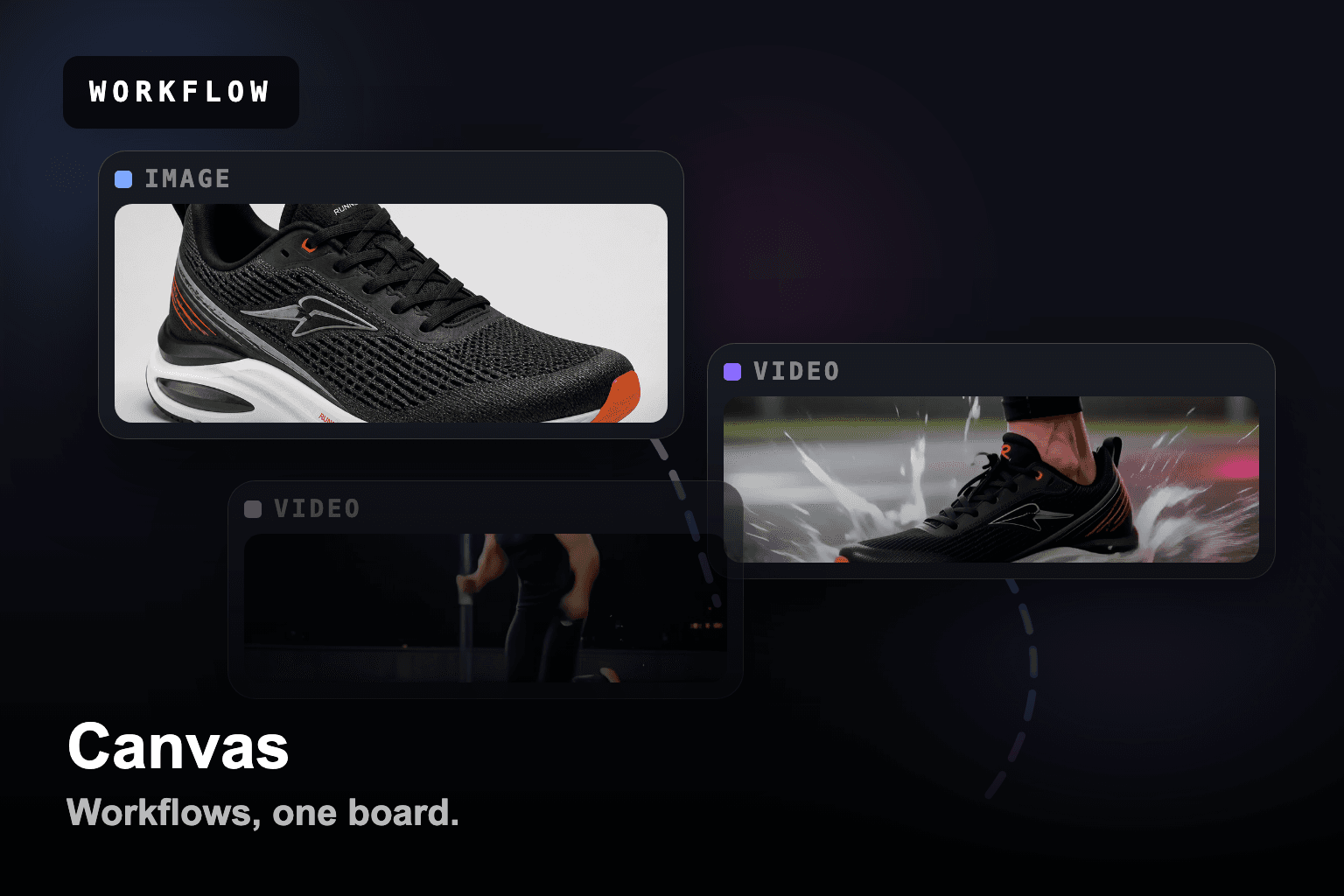
What Is Mobbi Canvas?
Mobbi Canvas is a node-based infinite canvas for AI image and video generation, now live at mobbi.ai/canvas. Instead of generating one image or one clip at a time in a linear feed, you work on an open, zoomable board: double-click anywhere to drop a node, type a prompt, choose a model, and connect the output of one node into the input of the next. The result is a visual creative pipeline — prompt to image to video to audio — that you can see end to end, rearrange, and reuse.
The product tagline states the idea directly: build freely, automate visually. Every major AI model lives on the same board — more than 40 image and video model versions, including Sora 2, Google Veo 3.1, Kling 3.0, HappyHorse 1.0, Seedance 2.0, Nano Banana 2, Seedream 5.0, Flux 2, and GPT Image 2 — so you never switch tools or tabs to move from a still frame to a finished, animated shot with sound.
How Mobbi Canvas Works: Double-Click to Create, Drag to Connect
Mobbi Canvas replaces the single prompt box with a spatial workspace. The interaction model is deliberately simple: double-click or right-click anywhere on the board to create a node, then wire nodes together by dragging from one node's output port to another node's input. A prompt feeds an image generator; that image feeds a video generator; the video can feed an audio pass. What used to be three disconnected tools becomes one connected flow you can read at a glance.
Because the canvas is infinite and persistent, your whole project lives in one place. Pan and zoom across dozens of nodes, fit the view to your work, draw and annotate directly on the board, and undo or redo any step. Every canvas saves automatically, so a creative exploration is never lost between sessions and runs entirely in the browser — no install, no GPU, no setup.
- Double-click or right-click anywhere to create a node and start generating
- Drag from an output port to an input port to connect nodes into a pipeline
- Pan, zoom, and fit-to-view across an infinite board that holds an entire project
- Draw, annotate, and add arrows to plan a flow visually before you render
- Undo, redo, and automatic saving keep every iteration recoverable
- Runs in any browser — no install, no local GPU, no environment setup
The Node Types: Prompt, Image, Video, Audio, Upload, and Draw
A canvas is built from typed nodes, each handling one step of the creative process. The node palette covers the full path from idea to finished asset, and any node's output can become another node's input — which is what turns a board of nodes into an automated pipeline.
- Prompt node — write and store reusable text prompts that drive downstream generators
- Image node — generate stills with image models, then refine, edit, or extend them
- Video node — animate a prompt or an image into motion, with audio-capable models
- Audio node — add a generated soundtrack or audio layer to a clip
- Upload node — bring your own image into the canvas as a starting frame or reference
- Draw node — sketch, mask, and annotate directly on the board to guide generations
Every Major AI Model, On One Canvas
Most AI tools lock you into a single model. Mobbi Canvas does the opposite: it puts more than 40 model versions on the same board so you can pick the right model for each node and compare outputs side by side without leaving the workspace. Swap a frame from one image model into two competing video models and judge them next to each other in seconds.
The image lineup spans Nano Banana 2 and Nano Banana Pro, Seedream 4.0 through 5.0 Lite, the full Flux 2 family (Flex, Pro, and Kontext), GPT Image 2, and Grok Imagine. The video lineup covers Sora 2 and Sora 2 Pro, Google Veo 3.1, Kling all the way to v3.0 Pro, HappyHorse 1.0, Seedance 2.0, Hailuo 2.3, Wan 2.7, and Grok Imagine Video — many with native audio support.
- Image models — Nano Banana 2 / Pro, Seedream 5.0, Flux 2 (Flex / Pro / Kontext), GPT Image 2, Grok Imagine
- Video models — Sora 2 / Pro, Google Veo 3.1, Kling v3.0 Pro, HappyHorse 1.0, Seedance 2.0, Hailuo 2.3, Wan 2.7
- More than 40 model versions in total, selectable per node
- Compare models side by side by branching one input into several generator nodes
Chain Nodes Into Pipelines: From One Prompt to a Finished Scene
The real power of Mobbi Canvas is composition. A single prompt node can fan out to several image models; a winning still can branch into multiple video models; and a chosen clip can pass through an audio node for a soundtrack. Because every connection is visible, the entire creative decision tree is laid out in front of you instead of buried in a history feed.
This visual structure makes iteration fast and non-destructive. Change the prompt once and every downstream node can regenerate from the new input. Keep three competing directions alive on the same board, compare them in context, and only commit credits to the branch you want to finish — the workflow rewards exploration instead of penalizing it.
- Prompt to image to video to audio — a complete scene built as one connected flow
- Reuse one image as the input to several video models to compare motion and quality
- Branch a single idea into parallel directions and keep them all on one board
- Edit an upstream node and regenerate downstream nodes without starting over
Templates and One-Click Remixing
You do not have to start from a blank board. Mobbi Canvas ships with ready-made templates — pre-built node graphs for common outcomes like a product launch, a character scene, or a cinematic clip — so you can open a working pipeline and swap in your own prompt or image. Templates turn a proven workflow into a starting point rather than something you have to reverse-engineer.
Any template or shared canvas can be remixed in a click: open it, replace the inputs, and regenerate with your own concept. It is the fastest way to learn how an effective pipeline is wired while producing your own result at the same time.
Share and Reuse Canvases With a Link
Canvases are not trapped in your account. Save a board, generate a share link, and anyone can open a read-only view of the full node graph — prompts, models, connections, and outputs included. Recipients can import the shared canvas into their own workspace and remix it, which makes Mobbi Canvas a way to distribute reusable workflows, not just finished files.
For teams and creators, this closes the loop between inspiration and production. A pipeline that produces a great result can be shared, cloned, and adapted across an entire team — turning one person's breakthrough into a repeatable asset for everyone.
- Save any board and reopen it exactly as you left it, with all nodes intact
- Generate a share link to a read-only view of the complete node graph
- Import a shared canvas into your own workspace and remix it with your inputs
- Distribute reusable pipelines across a team instead of one-off output files
Six Ways Creators Use Mobbi Canvas
Mobbi Canvas is built for any workflow where a single generation is not the finish line. The moment a project needs multiple steps, multiple models, or multiple variations, a node-based board outperforms a linear prompt box — because the structure of the work becomes visible and reusable.
- Product and ad creative — chain a product image into several video hooks for paid social
- Character and story scenes — keep a consistent character across a sequence of connected shots
- Model comparison — run the same prompt through competing image or video models on one board
- Storyboards and pre-production — lay out a multi-shot sequence visually before committing to a final render
- Music and sound-driven clips — pair generated video with an audio node for a complete short
- Reusable team workflows — build a pipeline once, share the link, and let everyone remix it
Pricing and Credits — How Generation Costs Work
Mobbi Canvas uses the same credit system as the rest of Mobbi. Every account includes free daily credits, so you can build a board and generate immediately without a credit card. Image generations cost a fraction of a video generation, and video cost scales with clip length, resolution, and the model you select — a premium model such as Sora 2 Pro or Veo 3.1 uses more credits than a fast, lightweight model.
Because the canvas only charges for the nodes you actually run, exploration is cheap and finishing is intentional. Keep several branches alive while you decide, and spend credits to render only the direction you commit to. Pro plans add monthly credit allowances at lower per-credit pricing for creators and teams generating at volume.
- Free daily credits included with every Mobbi account — no credit card to start
- Image generations cost a fraction of a video generation
- Video cost scales with length, resolution, and the selected model
- You only spend credits on nodes you run — branching and planning stay cheap
- Pro plans add monthly credit allowances at lower per-credit pricing
Mobbi Canvas vs Linear AI Tools and Node Editors Like ComfyUI
Compared with a linear prompt-box tool, Mobbi Canvas trades a scrolling history for a spatial map — you see how every asset was produced and can reuse the structure instead of re-prompting from scratch. Compared with a power-user node editor like ComfyUI, Mobbi Canvas keeps the visual, composable workflow but removes the setup: there is no local install, no GPU to manage, no dependency graph to maintain, and more than 40 hosted models are one click away inside each node.
The practical difference is who the tool is for. ComfyUI rewards engineers who want maximum control over a self-hosted pipeline; a linear feed rewards quick one-off generations. Mobbi Canvas targets the middle that most creators actually live in — visual, multi-step, multi-model creative work that needs to be fast, shareable, and reusable without becoming an infrastructure project.
- vs linear tools — a visible, reusable pipeline instead of a disposable prompt history
- vs ComfyUI — the same node-based composability with zero install, no GPU, and hosted models
- One board for both image and video, with 40+ models selectable per node
- Browser-based and shareable — send a link instead of exporting a workflow file
Getting Started With Mobbi Canvas in Under 60 Seconds
Mobbi Canvas is live now at mobbi.ai/canvas. Sign in with Google or email — free daily credits are included — and the board opens with a quick-start panel offering text-to-image, image, and video starting points. From there, the entire workflow is double-click, prompt, connect, and generate.
Open the canvas, double-click to drop a prompt node, type what you want to see, and pick a model. Connect that node to an image generator, then connect the image to a video generator, and click generate on the branch you want to finish. Your board saves automatically, and a share link is one click away when you want to hand the pipeline to someone else.
- Open mobbi.ai/canvas in any browser — no install required
- Sign in with Google or email — free daily credits included on signup
- Double-click the board to create a prompt node and choose a model
- Connect prompt to image to video to build a pipeline visually
- Click generate on the branch you want, then share the canvas with a link
Frequently Asked Questions
What is Mobbi Canvas?
Mobbi Canvas is a node-based infinite canvas for AI image and video generation, available at mobbi.ai/canvas. You create prompt, image, video, and audio nodes on an open board and connect them into visual creative pipelines, with more than 40 AI models — including Sora 2, Google Veo 3.1, Kling 3.0, Nano Banana 2, and Seedream 5.0 — selectable per node.
How does Mobbi Canvas work?
Double-click or right-click anywhere on the board to create a node, type a prompt, and pick a model. Drag from one node's output port to another node's input to connect them — for example prompt to image to video to audio. The whole pipeline is visible and reusable, and the board saves automatically and runs in any browser with no install or GPU required.
Which AI models does Mobbi Canvas support?
Mobbi Canvas includes more than 40 image and video model versions. Image models include Nano Banana 2 and Pro, Seedream 5.0, the Flux 2 family, GPT Image 2, and Grok Imagine. Video models include Sora 2 and Sora 2 Pro, Google Veo 3.1, Kling up to v3.0 Pro, HappyHorse 1.0, Seedance 2.0, Hailuo 2.3, Wan 2.7, and Grok Imagine Video — many with native audio.
Is Mobbi Canvas free?
Yes — every Mobbi account includes free daily credits, so you can build a board and generate immediately with no credit card. Image generations cost a fraction of a video generation, video cost scales with length, resolution, and model, and you only spend credits on the nodes you actually run. Pro plans add monthly credit allowances at lower per-credit pricing.
How is Mobbi Canvas different from ComfyUI?
Mobbi Canvas keeps the node-based, composable workflow of ComfyUI but removes the setup: there is no local install, no GPU to manage, and no dependency graph to maintain. More than 40 hosted models are one click away inside each node, the canvas runs in any browser, and any board can be shared with a link instead of exporting a workflow file.
Can I use my own images in Mobbi Canvas?
Yes. The upload node lets you bring your own image onto the canvas as a starting frame or reference, then connect it to image or video generators to edit, restyle, or animate it. You can also draw and annotate directly on the board to guide generations.
Can I share a Mobbi Canvas with other people?
Yes. Save any board, generate a share link, and others can open a read-only view of the full node graph — prompts, models, connections, and outputs. They can import the shared canvas into their own workspace and remix it, which makes Canvas a way to distribute reusable workflows, not just finished files.
Do I need to install anything to use Mobbi Canvas?
No. Mobbi Canvas runs entirely in the browser at mobbi.ai/canvas. There is no software to install, no local GPU required, and no environment to configure — sign in with Google or email and start building on the board immediately.
Final Thoughts
Mobbi Canvas turns AI generation from a one-prompt-at-a-time feed into a visual, connected workspace. You build freely on an infinite board, automate visually by chaining nodes into pipelines, and reach more than 40 image and video models — Sora 2, Veo 3.1, Kling 3.0, Nano Banana 2, Seedream 5.0, and more — without ever leaving the canvas.
Canvas is live now at mobbi.ai/canvas with free daily credits. Whether you are building ad creative, telling a multi-shot story, comparing models, or sharing a reusable pipeline with your team, the canvas gives you a faster, more visual way to go from idea to finished image, video, and sound.
Work With Mobbi.ai
Try Mobbi Canvas free at mobbi.ai/canvas — a node-based infinite canvas with 40+ AI image and video models. Double-click to create a node, connect prompt to image to video, and build your first pipeline in under 60 seconds.
Explore Mobbi.ai Platform